

Full Site Editing (FSE) lets you use WordPress blocks to design your site’s header, footer and page layouts, alongside the content inside them. With a block theme, you can make those changes in the Site Editor, under Appearance → Editor. WordPress’s Site Editor guide explains how to access it.
If you already use blocks to write posts, the tools will feel familiar. The new thing to understand is the scope of a change: are you editing one page, the layout used by many pages, or a shared header?
Updated for October 2026: this guide reflects WordPress 7.1, with 7.1.2 the latest stable release when checked on 4 October. The Site Editor is no longer beta. WordPress 7.1 adds responsive styling controls for supported blocks, making it easier to adjust designs for different screens. See the 7.1 release overview and 7.1.2 release announcement.
What is Full Site Editing?
FSE is the broader set of block-based site-design features. Site Editor is the name of the interface you use. A block theme supplies the templates and design defaults that make this possible. Block themes became available in WordPress 5.9; they are an established option alongside classic themes. Read WordPress’s block-theme explanation.
Here are the pieces you will work with:
| Piece | What it does | Example |
|---|---|---|
| Page or post content | Holds the writing and media for one entry. | The text of your About page. |
| Template | Defines the surrounding layout for a type of content. | A single-post layout with a title, date and article body. |
| Template part | Provides a shared structural section. | A header used across several templates. |
| Styles | Sets design defaults across the site and for block types. | Typography, colours and the appearance of buttons. |
| Pattern | Gives you a ready-made arrangement of blocks. | A two-column introduction or newsletter section. |
Templates use dynamic blocks to display each entry’s own title and content. A single-post template therefore does not need a separate copy of every article. The template handbook explains this separation.
An ordinary pattern can be changed independently after insertion. A synced pattern shares its content across the places where you use it. For a structural header or footer, use a template part. These distinctions are covered in WordPress’s guide to patterns and template parts.
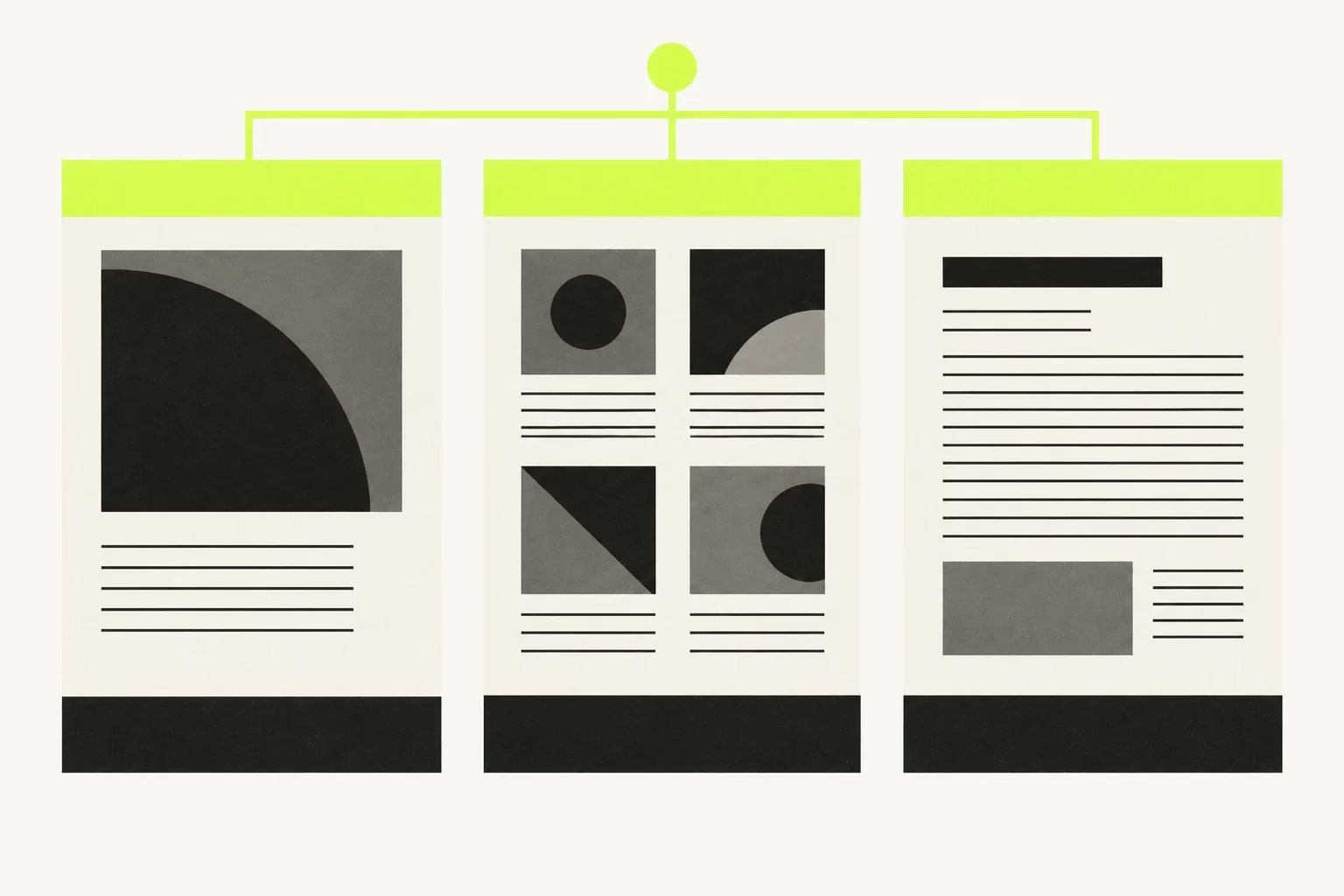
For example, changing the text of your About page changes that page. Editing its shared header can change the header on your articles and archives too.
Where does theme.json fit?
theme.json is a theme’s configuration file for design settings and styles. It can define things such as a colour palette or reading width. It works with classic themes too, so its presence alone does not make a theme a block theme. WordPress’s introduction to theme.json covers its role.
You do not need to edit this file to start using the Site Editor. For developers, this small example defines a reading width and default text and background colours:
{
  "$schema": "https://schemas.wp.org/wp/7.1/theme.json",
  "version": 3,
  "settings": {
    "layout": {
      "contentSize": "760px",
      "wideSize": "1280px"
    }
  },
  "styles": {
    "color": {
      "background": "#F7F7F2",
      "text": "#161616"
    }
  }
}
This is an illustrative configuration, not a complete theme. Merge relevant values into a development theme’s existing file rather than replacing it. Version 3 is supported from WordPress 6.6 onward; the schema URL above targets WordPress 7.1 instead of experimental trunk features. See the current theme.json reference.
For more context, read our guide to theme.json in WordPress.
What are the benefits of FSE?
A consistent design is easier to maintain. Styles lets you adjust site-wide typography, colours and layout, or the default appearance of a particular block type. The Style Book helps you review blocks together before settling on a design. Blocks with individual styling can still differ from those defaults. WordPress’s Styles guide explains the controls.
Shared layouts save repeated work. A header template part or article template gives you one place to maintain a design used across the site. You can spend more time on the content instead of recreating the same layout for each post.
Responsive adjustments are more accessible. In WordPress 7.1, supported styles can be adjusted for different viewports in Global Styles or individual block settings. The available controls still depend on the block and theme. You should continue checking the actual site on smaller screens. See what’s new in WordPress 7.1.
FSE does not automatically create a good design. A small palette, clear typography and a few useful layouts usually give you a better starting point than filling every section with a different pattern.
How to try FSE and migrate an existing site
Start with a small change
Use a local or staging copy for your first experiment. Install and activate a block theme there. Twenty Twenty-Five is one free option with patterns and style variations; it is an example to explore, not a requirement.
- Open Appearance → Editor.
- Open Styles and try a different heading colour or font setting.
- Open Templates, then a page or single-post template.
- Use List View to find its header and select a block inside it.
- Make one change, then choose Save. Review the list of affected items before confirming.
- Open another page that uses the same header to see what changed.
The Site Editor documentation explains List View and the save review. That review matters: a shared change can affect more than the page you are looking at.
Use the View menu for desktop, tablet and mobile previews. In the Site Editor, View site opens the front end. A narrow editor canvas helps you inspect wrapping, but also check navigation and interactions on the real page. Read the current View guide.
Move an existing site carefully
A theme switch is a design migration. It does not automatically recreate your old templates, widget areas, builder layouts or custom functionality.
Use this checklist:
- Back up the database and files. Keep the current theme and a record of important settings so you can restore the earlier site.
- Work on a copy. Inventory the homepage, article layout, archives, navigation, forms and any theme-specific features.
- Choose a suitable block theme. Start with the closest useful structure, then rebuild the header, footer and essential templates.
- Keep content in the right place. Leave article text in posts; use a template’s Post Content block to display it. Avoid pasting an entire article into a shared template.
- Check menus and old layouts. The Navigation block can import classic menus, but check their links and mobile behaviour. Builder shortcodes, widgets and plugin blocks need their own compatibility checks. See the Navigation block guide.
- Check URLs and important tasks. Preserve permalinks. Test search, archive pagination, contact forms, checkout if present, and representative old articles. Check headings, image sizes and any SEO-plugin output after the switch.
- Keep a rollback route. Plan how to move the tested files and database changes to production; keep a fresh backup of the live site before doing so.
Converting a custom classic theme is a separate development project: its PHP templates need suitable block-template equivalents, and its functionality still needs a home. Renaming template files is not a conversion.
Developer detail: Site Editor template changes are stored in the database and can override the theme’s files. Back up both. If you build a layout locally, editing or copying theme files alone may miss saved customizations. WordPress documents how these templates are stored.
Useful FSE resources
These are good next stops, depending on what you want to build:
- WordPress block themes: browse themes that support site editing.
- Learn WordPress: free lessons and courses for users and developers.
- WordPress template parts handbook: learn how shared structural sections work.
- WPBlockz’s Query Loop tutorial: understand the block used for article listings.
- WPBlockz’s block-pattern tutorial: build reusable starting layouts.
Start with the blocks WordPress already provides. Add a block plugin when you have a specific missing feature, and check its compatibility with your chosen theme and WordPress version.
FSE vs. classic themes
| Question | Block theme with FSE | Classic theme |
|---|---|---|
| How are layouts defined? | Block markup in templates, with saved editor customizations. | Primarily PHP templates and theme-specific settings. |
| Where do I change the header? | A shared template part in the Site Editor. | Theme options, the Customizer or template code, depending on the theme. |
| How do I manage the design? | Styles and the controls available for each block. | Theme settings and CSS; some classic themes also support theme.json. |
| Can I use blocks in posts? | Yes. | Yes, when using the block editor. |
| Is switching compulsory? | No. | You can keep a suitable classic theme. |
In block themes, the Site Editor generally replaces the Customizer for design work, although a theme or plugin can still enable the Customizer. Classic themes do not provide the full Site Editor. WordPress’s block-theme documentation describes those differences.
A block theme is worth exploring if you want shared layouts you can maintain visually. If your existing site depends heavily on custom templates or a page builder, first estimate the rebuild work. Our Gutenberg vs. page builders comparison gives more context on those workflows.
Your next step
On a local copy, change one shared header, one style setting and one template. Then inspect an article, a page and an archive on desktop and mobile. That small exercise makes the relationship between content and design much easier to understand.
Once those pieces feel comfortable, build the rest of your layout a section at a time. For more practical WordPress guides, browse our tutorials or subscribe to WPBlockz.


